
Visualization / Tables
Table Styles
Give a Table, Pivot table, Tree table or Parent-child table a complete look with one template, an accent colour and a density.
A table style sets the header, banding, grid lines, subtotal and total colours and row height of a table in one step. It is available on Table, Pivot table, Tree table and Parent-child table, in Style → Table style.
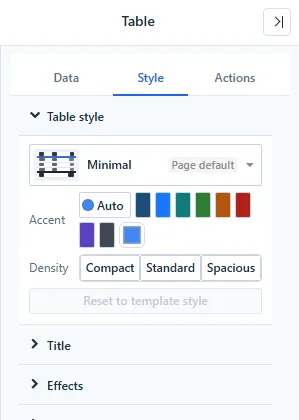
Choose a template
Click the template button to open the gallery.
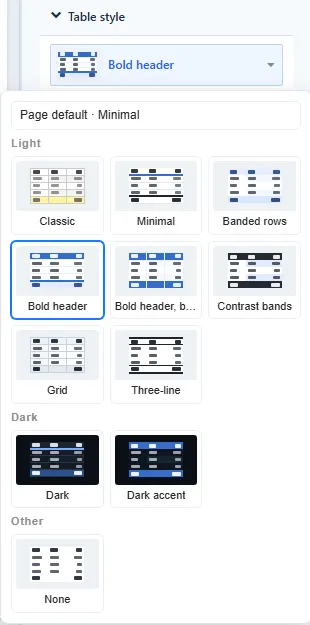
| Group | Template | Look |
|---|---|---|
| Light | Classic | The appearance of tables before 10.00. |
| Minimal | Plain header with an accent line, horizontal lines only. | |
| Banded rows | Tinted header and alternating tinted rows, no grid lines. | |
| Bold header | Solid accent header with white text, horizontal lines. | |
| Bold header, banded | Solid accent header, banded rows, vertical lines. | |
| Contrast bands | Dark header and total, strong bands. | |
| Grid | All grid lines, light grey dimension columns. | |
| Three-line | Academic style: rules above, below and under the header only. | |
| Dark | Dark, Dark accent | Dark component background with light text. |
| Other | None | Transparent, bold header only. |
Accent colours the template: Auto uses the first colour of the report’s colour scheme, or pick one of eight presets or Custom color. Classic, Three-line and None have no accent. On solid accent fills the text switches between white and dark so it stays readable.
Density sets the row height: Compact, Standard or Spacious (22, 28 or 36 px for most templates).
Templates and your own settings
- A setting you change on the table, such as the header font colour, overrides the template. The control shows ↺ after its label; click it to go back to the template value.
- Changing the template keeps the settings you changed.
- Reset to template style clears all appearance changes. Conditional formatting, column widths and alignment are kept.
- Templates never change font size, font family, column widths, alignment or conditional formatting.
Page default
A table without its own template follows the report’s default template, shown as Page default in the picker.
- New reports use Minimal as the page default. The first item in the gallery, Page default · Minimal, removes the table’s own template.
- Reports created before 10.00 have no page default, so their tables, including tables you add later, use Classic.
Related settings
The templates use four settings that you can also change yourself:
| Setting | Where |
|---|---|
| Grid line direction: All, Horizontal only, Vertical only, None | Style → Grid |
| Top and bottom rules (0–4 px) | Style → Grid |
| Header divider (0–4 px) | Style → Header |
| Total divider (0–4 px) | Style → Grand total |
Export as Excel writes the table style into the workbook. See Export.
Related: Table · Pivot table · Conditional Formatting