
Datasource
JDBC Driver Management
Add, update and delete the JDBC driver JAR files Datafor uses to connect to databases, under Settings › Data › Database drivers.
Datafor keeps a list of JDBC drivers so that each database connection can use a driver version that matches its database server. Add a driver when a database needs a different driver version than the ones listed.
Only administrators can add, update or delete drivers. Other users choose from the listed drivers in the Driver field of a connection.
1. Open the driver list
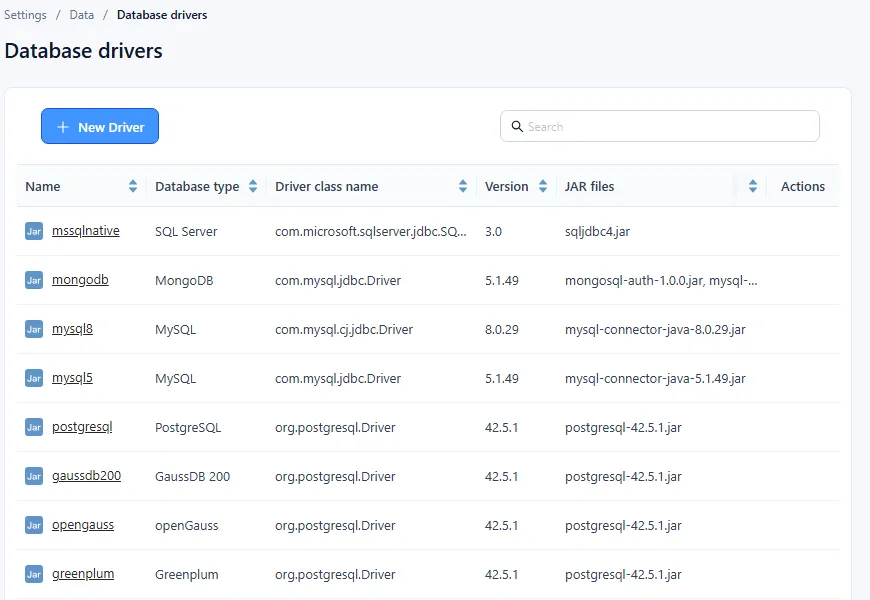
Go to Settings › Data › Database drivers. The list shows:
| Column | Meaning |
|---|---|
| Name | Name of the driver entry, e.g. mysql8. Click it to edit the driver. |
| Database type | Database the driver is for, shown by its official name, e.g. MySQL, PostgreSQL, SAP HANA. |
| Driver class name | Java class of the JDBC driver, e.g. com.mysql.cj.jdbc.Driver. |
| Version | Driver version, read from the uploaded driver. |
| JAR files | JAR files of the driver. |
| Actions | Edit and Delete. |
Use the search box above the list to filter by name, database type, driver class, version or file name. Columns can be sorted.
2. Add a driver
-
Click New driver.
-
Fill in the dialog:
Field What to enter Notes Name Unique name for the driver entry. “The driver name already exists” if it is taken. Database type Database the driver is for. Choosing a type fills in its default Driver class name. Driver class name Java class of the driver. Change it if your JAR uses a different class. JAR files Click choose and select a .jarfile.Repeat for each JAR the driver needs. -
Click OK. “Saved” appears and the driver is added to the list.
3. Update a driver
- Click the driver’s Name, or choose Edit in its Actions menu.
- Change the fields, remove JAR files you no longer need, or choose new ones.
- Click OK.
4. Delete a driver
Datafor does not check whether a connection still uses the driver. Before deleting, open each connection of that database type and check its Driver; switch connections that use it to another driver.
Then choose Delete in the driver’s Actions menu and confirm. The driver entry and its JAR files are removed; this cannot be undone.