
Embedded
Share Link
Create links that open a report without signing in, with read-only or editable access, an expiry date and optional toolbar.
A share link opens a report for anyone who has the link, without a Datafor sign-in. Use it to send a report to people without a Datafor account, or to embed it in another site’s iframe.
Use the public address
Copy links while you use Datafor at the address recipients will use, for example https://bi.example.com/datafor/, not localhost or an internal host name. A link copied while you are on http://localhost:28080/datafor/ works only on the server itself. Also set Site URL in Settings › Access & Integration › Site address to that address (see Site Address).
A link looks like this:
https://bi.example.com/datafor/plugin/datafor/api/share/open?shareid=<id>Create a share link
- Open the report and click Share on the report toolbar.

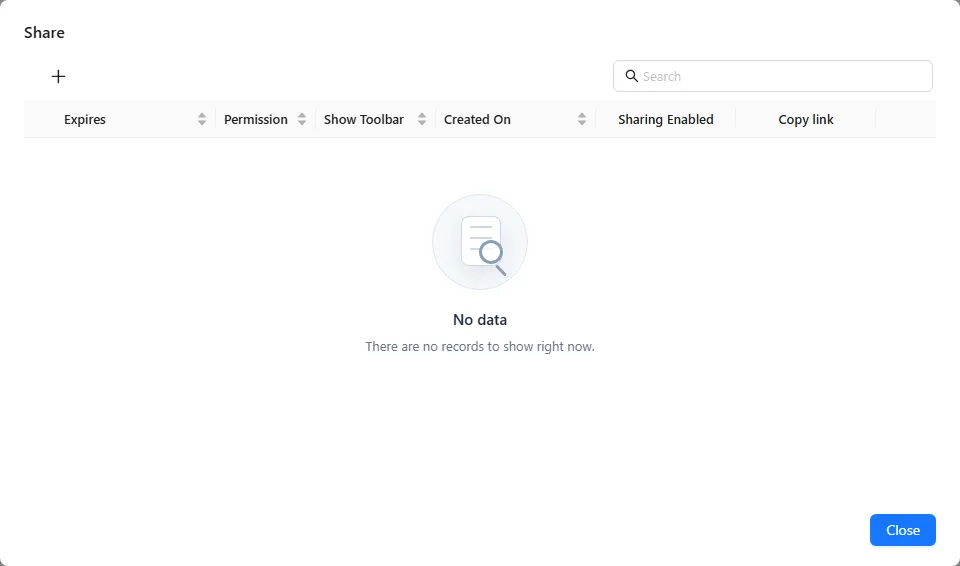
- The list shows the share links you created for this report. Click New.
-
In the Create dialog, set:
Setting Options Access permission Readonly: recipients can view the report. Editable: recipients can also edit it and save the changes to the original report. Editable is offered only if you can edit the report. Expires Never, or a date and time after which the link stops working. Show Toolbar Only for Readonly links. On: the report opens with its toolbar. Off: it opens in embed mode, without toolbar, which suits an iframe.
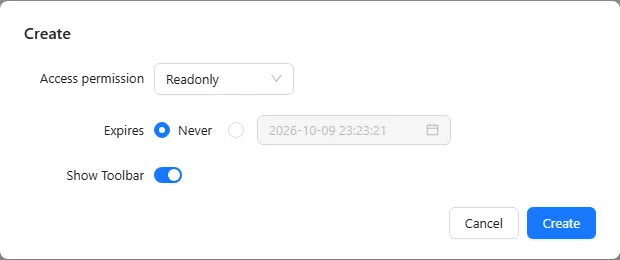
- Click Create.
- In the row of the new link, click the link icon in the Copy link column to copy the URL.
You can add URL options to a copied link, such as &locale=en-US for the language or &__device=mobile for the mobile layout.
Manage share links
The list has the columns Expires, Permission, Show Toolbar, Created On, Sharing Enabled and Copy link.
- Pause a link: turn off Sharing Enabled. The link stops working until you turn it on again; the URL stays the same.
- Change a link: choose Edit in the row’s action menu, change the settings, and click Upgrade. The URL stays the same.
- Delete links: choose Delete in the row’s action menu, or select several rows and click Delete on the toolbar. A deleted link cannot be restored.
All your share links, for every report, are also listed in My account › Share link (see My Account).
When a link does not open
| Message | Meaning |
|---|---|
shareid is not enabled |
Sharing Enabled is off for the link. |
shareid is overtime |
The link has expired. Edit it and set a new Expires value. |
shareid not found |
The link was deleted. |
Access denied, you do not have access to the page! |
The report could not be opened as the link’s creator. Check that the creator’s account still exists and can open the report. |