
Subscriptions & Alerts
Setting Up Delivery
For administrators. Prepare email, the render service, links, IM apps and group channels so subscriptions and alerts can be delivered, and set the time zone, default delivery and message templates.
This page is for administrators. Everything here is under Settings › Notifications, in the order you usually set it up: Email, IM platforms, Delivery channels, then Subscriptions & alerts for the defaults and templates.
IM platforms or delivery channels?
The two pages work together, and many setups need both. IM platforms connects an app that you create in WeCom, DingTalk, Feishu, Slack or Microsoft Teams; depending on the platform, one app gives direct messages, sign-in from the IM, directory sync and asking questions in chat (see IM Platforms). Delivery channels lists the destinations that subscriptions and alerts send to, and decides who may post to each group.
| To send to | Set up |
|---|---|
| A WeCom, DingTalk or Feishu group | A group robot under Delivery channels, one per group. No app is needed. |
| A Slack or Teams channel | An app under IM platforms. Users then pick the channel in the editor, nothing is added under Delivery channels, and screenshots and files arrive without Datafor needing a public address. Without an app, a Slack Webhook or Teams Webhook per channel under Delivery channels. |
| Each person, as a direct message | An app under IM platforms, plus its direct-message channel under Delivery channels. Saving a Slack or Teams app creates that channel; for WeCom, DingTalk and Feishu you add it. |
| Another system, such as a ticketing tool | A Generic webhook under Delivery channels |
If you only post reports into a few WeCom, DingTalk or Feishu groups, group robots are enough. Set up an IM app when people should receive their own messages, when they should sign in or ask questions from the IM, or when you use Slack or Teams.
Checklist
| What | Where | Without it |
|---|---|---|
| Mail server | Settings › Notifications › Email, see Mail Server Configuration | No email is delivered, and owners do not get failure notices |
| Site address | Settings › Access & Integration › Site address, see Site Address | Open report, Ask the AI assistant, Silence and file links point to an address people cannot reach |
| Render service | Runs with the AI Agent, see below | Subscriptions send only text and the report link |
| Temporary links | A rule in the platform security file, see below | DingTalk, Feishu, webhook, Slack Webhook and Teams Webhook messages carry no images or files |
| AI service and budgets | AI service; budgets on the Settings tab | No AI brief in subscriptions, no AI analysis in alerts |
| IM apps | Settings › Notifications › IM platforms, see IM Platforms | No direct messages, no Slack or Teams channels |
| Group robots and webhooks | Settings › Notifications › Delivery channels, see Delivery Channels | No WeCom, DingTalk or Feishu group messages, no webhooks |
| Time zone | Settings › General › System configuration: Platform time zone in the default tenant, System time zone in other tenants. See Time zone | Times follow the server’s zone, which may not be your business zone |
Check the result on the Overview tab of Subscriptions & alerts: the status line reads Services are running normally or names what is not working, and Details shows the render service, temporary links and the scheduler. See Monitoring and Limits.
Render service
The render service (ai-agent-render) opens dashboards in a headless Chromium as each recipient and returns the screenshot, PDF, figures, Excel exports and AI brief. It is part of the AI Agent installation, listens on 127.0.0.1:38082 only, and starts with the AI Agent:
./app-console.sh start            # AI Agent, MCP server and render service
./app-console.sh start render     # the render service only
./app-console.sh restart render
curl http://127.0.0.1:38082/health
On Windows use app-console.bat in the ai-agent folder. /health answers {"ok":true,...} when the browser is up. Logs are in ai-agent/logs/render.log.
Plan about 1 GB of memory for it: two pages render at a time and each Chromium page takes 300–500 MB. A dashboard takes 10 to 60 seconds to render.
Linux needs browser libraries and fonts. Chromium ships with the installation, but its system libraries do not. Without a CJK font, Chinese and Japanese text renders as boxes.
# Debian 12 / Ubuntu 22.04 (on Ubuntu 24.04 several packages end in t64)
apt-get install -y libasound2 libatk-bridge2.0-0 libatk1.0-0 libatspi2.0-0 libcairo2 \
  libcups2 libdbus-1-3 libdrm2 libgbm1 libglib2.0-0 libnspr4 libnss3 libpango-1.0-0 \
  libx11-6 libxcb1 libxcomposite1 libxdamage1 libxext6 libxfixes3 libxkbcommon0 libxrandr2 \
  fonts-noto-cjk fonts-liberation
# RHEL / Rocky / openEuler
dnf install -y alsa-lib at-spi2-atk atk at-spi2-core cairo cups-libs dbus-libs libdrm mesa-libgbm \
glib2 nspr nss pango libX11 libxcb libXcomposite libXdamage libXext libXfixes libxkbcommon libXrandr \
google-noto-sans-cjk-ttc-fonts liberation-fontsThe render service and Datafor share the AI Agent secret (DATAFOR_AGENT_SECRET, see AI Agent Shared Secret). Alerts do not use the render service.
Temporary links
DingTalk and Feishu robots, generic webhooks and Slack or Teams webhooks cannot receive uploaded files, so their messages link to the screenshot and files instead. These links work without signing in, carry a signature and expire after 7 days by default (Link validity under Advanced on the Settings tab; at most 30 days).
They require one line in pentaho-solutions/system/applicationContext-spring-security.xml, placed before the \A/plugin/.*\Z rule, followed by a restart:
<sec:intercept-url pattern="\A/plugin/datafor-notify/api/asset/.*\Z" access="Anonymous,Authenticated" />When the rule is missing, the Overview tab shows Temporary links: Blocked. If you do not want files reachable without sign-in at all, turn off Allow images and files in IM messages under Advanced on the Settings tab; those destinations then get the text and the Open report link only. Email, Slack and Teams apps, WeCom robots and the IM apps’ direct messages upload files and do not need temporary links.
The links must be reachable from the IM platform’s servers: a server that only has an intranet address can send images to WeCom robots and IM apps, but not to DingTalk or Feishu robots.
IM apps
Settings › Notifications › IM platforms connects a WeCom, DingTalk, Feishu, Slack or Microsoft Teams app to Datafor. One app serves several purposes: sign-in from the IM, directory sync, asking the AI assistant in chat, and delivery. Creating the apps, the addresses to enter in each platform and linking people are described in IM Platforms. For subscriptions and alerts an app provides:
- Direct messages to each person. Saving a Slack or Teams app creates its Slack direct message or Teams direct message channel. For WeCom, DingTalk and Feishu, create a delivery channel of type WeCom app message, DingTalk app message or Feishu app message and pick the app. From then on every user sees it under How I receive. People must be linked to the app: through directory sync, by opening Datafor from the IM app once, or by an administrator with IM accounts on the user’s row under Users. Slack and Teams also match people by email address.
- Slack and Teams channels, which users pick directly in Post to channels from the app’s channel list. No delivery channel is needed. Other users than administrators see an app’s public channels only while Let users choose channels is on for that app (the default); private channels are for administrators only, and a private Slack channel must invite the bot first. Teams lists standard channels and installs the app into the team when the subscription is saved.
Delivery channels
Settings › Notifications › Delivery channels holds the group robots (WeCom, DingTalk, Feishu), the Teams and Slack webhooks, generic webhooks and the direct-message channels of IM apps, and decides who may post to each group. How to create each one on its platform, what a group receives, testing and troubleshooting are in Delivery Channels.
Defaults for everyone
Default delivery, under Basics on Settings › Notifications › Subscriptions & alerts › Settings, decides how people who have not chosen in My account receive messages: Email only (the default), IM when linked, otherwise email, or Both email and IM. Pick an IM option once most people are linked to an IM app.
Every schedule, relative date and alert period uses the tenant’s time zone, set on Settings › General › System configuration: the platform time zone, or the tenant’s own when a tenant administrator set one. Changing it rearranges the next run times of that tenant, or of every tenant that follows the platform.
Recipients with the same permissions share one render; switching that off is a server setting, merge-renders in Other limits.
Message templates
Every subscription and alert message uses the templates in Message templates on the same tab; users do not write their own. Leave a field blank to use the built-in default, shown in grey. Preview shows the result as an email or as a group chat card with sample data; Restore defaults clears your changes. A placeholder that is misspelled is flagged in red under the preview, and the tab cannot be saved until it is fixed.
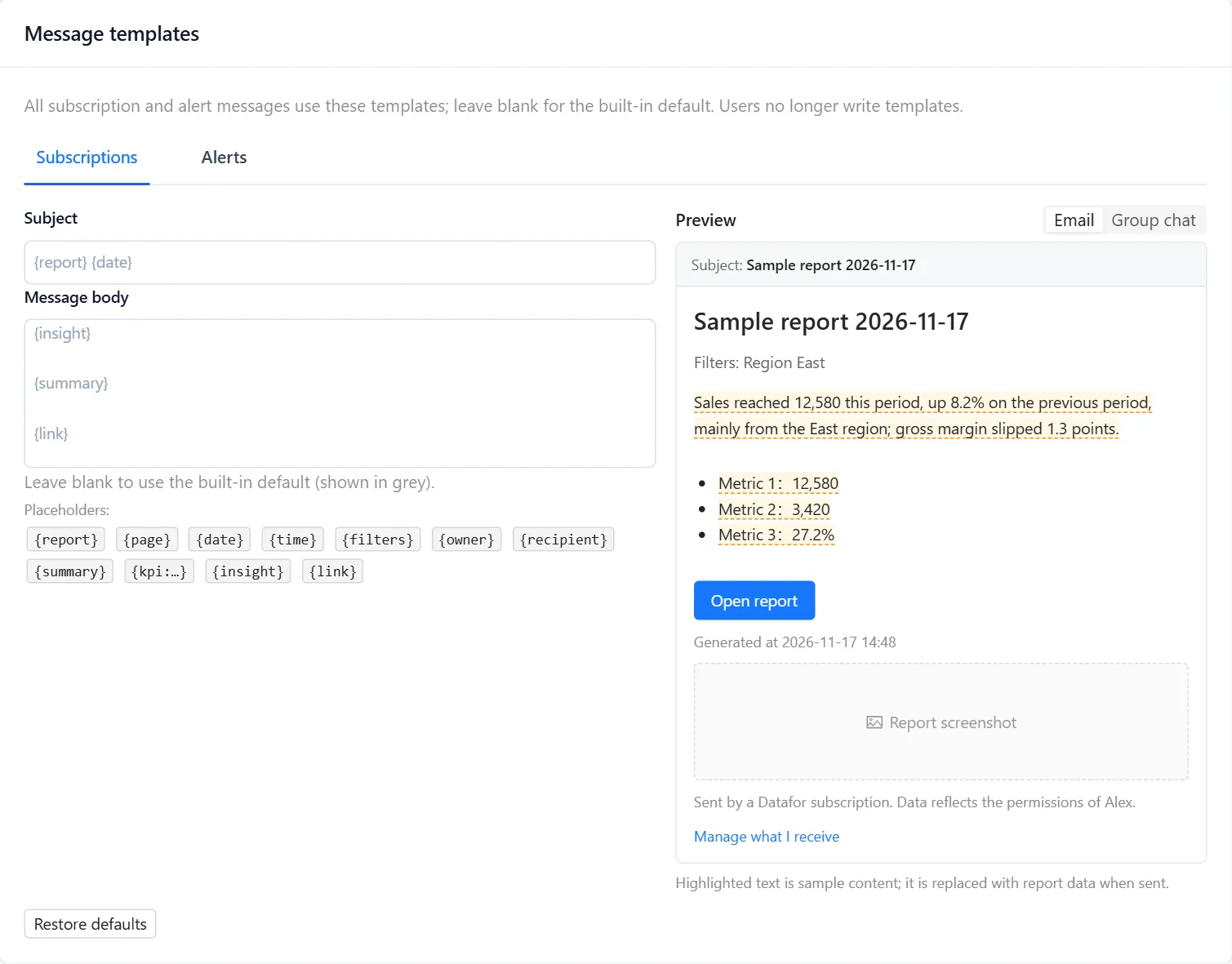
Subscriptions (default subject {report} {date}, body {insight}, {summary}, {link}):
| Placeholder | Becomes |
|---|---|
{report} |
Report name |
{page} |
Tab name; the report name when no tab is chosen |
{date}, {time} |
Send date and time in the tenant’s time zone |
{filters} |
Filter values used for this run. They are shown under the title automatically unless the body contains {filters}. |
{owner} |
The owner, whose permissions apply to channel messages |
{recipient} |
The recipient’s name; empty in channels |
{summary} |
The figures summary, one metric: value per line |
{kpi:Title} |
One figure, by the title of its card, for example {kpi:Net Sales} |
{insight} |
The AI brief |
{link} |
The Open report link; in email it becomes the button at that position |
Alerts (default subject [{severity}] {name} · {status}, for example [Warning] Net Sales below 1,500,000 · Alert triggered; body {summary}, {attribution}, {link}, {ask}): {name} (the alert’s name), {metric}, {value}, {baseline}, {change}, {changePct}, {period}, {baselinePeriod}, {condition}, {severity}, {status}, {members}, {filters}, {report}, {owner}, {recipient}, {date}, {time}, {attribution} (the AI analysis), {link} (Open report), {ask} (Ask the AI assistant) and {summary} (the standard block of value, comparison, change and condition).
Placeholders without a value are removed together with their empty line. Paginated report subscriptions use the subscription template, with the report parameters in {filters}.
Below the template, every message sent to a person (except Send me a test) ends with a footer naming whose permissions the data reflects and a Manage what I receive link (see Sent to me). Templates cannot remove them. Messages posted to channels have no such link.