
Visualization / Assists
Assist Components
Text, images, icons, shapes, buttons, web pages, AI insight and tabs, what they share, and their names in earlier versions.
Assist components add titles, explanations, decoration and navigation to a report. They need no data model, except Rich text value blocks, which query a measure, and the Web page when you bind it to data.
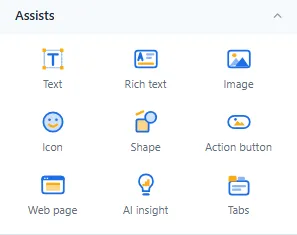
| Component | Use it for | Default size (px) |
|---|---|---|
| Text | Headings and short text, with dynamic values | 240 × 60 |
| Rich text | Formatted paragraphs, lists and live measure values | 200 × 200 |
| Image | Logos and fixed pictures | 240 × 160 |
| Icon | Font icons or an uploaded SVG | 64 × 64 |
| Shape | Rectangles, lines, arrows, callouts and more, with text | 160 × 100 |
| Line | A Shape that starts as a horizontal line; change its type for an arrow, an elbow connector or a fork connector | 200 × 12 |
| Action button | Navigation and actions such as reset filters | 120 × 36 |
| Web page | An embedded web page | 480 × 300 |
| AI insight | One click opens an automatic reading of the data | 400 × 240 |
| Tabs | Groups of content on one page | 200 × 200 |
What they share
- Style → Effects: background (Solid or Gradient with start colour, end colour and angle), border, corner radius, shadow, Padding, Opacity (of the content, not the background) and Hover effect (None, Lighten, Raise (shadow)). Shapes have Opacity and Hover effect only; the Action button and Tabs have their own style settings.
- Actions → Click action (Image, Icon and Shape): go to a report, open a link, switch a tab, reset or clear filters and more. Text and Rich text have no click action; in Rich text, insert a link instead. See Click Actions and Visibility.
- Actions → Visibility: show the component always, never in the report, or only for some parameter values, users or roles.
- Dynamic values such as
{{param.Region}}or{{date}}in Text, Shape text, Rich text, Image URLs and Web page addresses. See Dynamic Values.
Names in earlier versions
| Before 10.00 | Now |
|---|---|
| Text Box | Rich text |
| Image file | Image |
| Font icon, SVG | Icon |
| Rectangle, Line, Ellipse | Shape |
| Image Button | Action button (no data binding); an Image Button bound to a model field stays a Data button (legacy) |
| Iframe | Web page |
| Insight | AI insight |
| Image (in Charts) | Dynamic image (Charts → Other) |
Old Rectangle, Line, Ellipse, SVG and Data button components in existing reports still work. They are no longer in the palette (the Line entry now creates a Shape); a Rectangle, Line or Ellipse can be converted with Style → Shape → Convert to shape, and a Data button without data binding with Style → Content → Convert to Action button.