
Embedded
Signing In Users of Embedded Reports
The ways a user of an embedded Datafor report is signed in (session, share link, embed token, single sign-on) and which to choose.
An embedded report, whether in an iframe or rendered by the SDK, always runs as a Datafor user. That user’s permissions, row-level security and language decide what the report shows. This page lists the ways that user is signed in.
Options
| Option | How the user is identified | Works with | Users in Datafor |
|---|---|---|---|
| Existing Datafor session | The user has already signed in to Datafor in the same browser. | iframe with a report URL |
Every user needs a Datafor account. |
| Share link | Nobody signs in: the report runs as the user who created the link. | iframe |
No accounts for viewers. All viewers see the creator’s data. |
| Embed token (JWT) | Your backend signs a token for the current user with an embed token configuration. The token goes in the report URL under the configuration’s Token name (default token), or, with the SDK, in the Authorization: Bearer header. |
iframe, SDK |
Created on first use if Initialize user is selected. |
| Single sign-on: OAuth 2.0, SAML 2.0, CAS | A user without a Datafor session is sent to your identity provider to sign in, then back to Datafor. | iframe, new window |
Created on first sign-in if Create users on first sign-in is selected. |
Which to choose
- Your application has its own users (for example a customer-facing product): use an embed token. Your backend decides who the user is, and no Datafor sign-in page is ever shown. The SDK requires it.
- Your organization already uses an identity provider for the host application and Datafor: use single sign-on. Users sign in once at the identity provider.
- The same report for everyone, including people without an account (for example a public dashboard): use a share link with Show Toolbar off. Do not use it for data that differs per user, because every viewer sees the link creator’s data.
- Datafor users in an internal portal: an existing session can be enough, if the browser keeps them signed in to Datafor.
Embed token
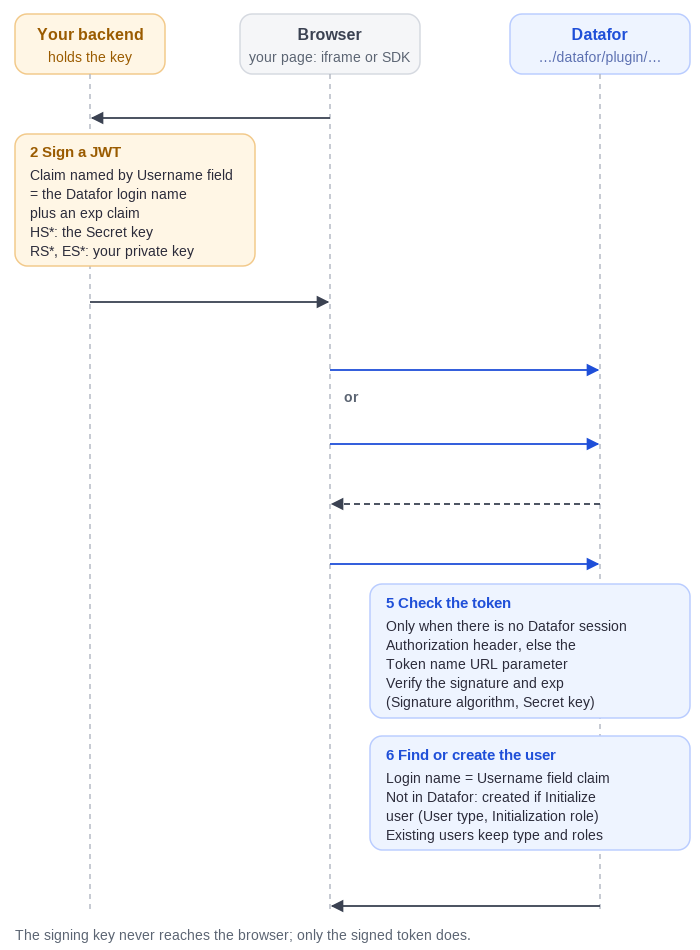
- Create and enable a configuration in Settings › Access & Integration › Embed tokens (JWT).
- When a user opens the page with the report, your backend signs a token whose payload has the Datafor login name in the claim named by Username field, and an
expclaim. See Send a token. - Pass the token:
iframe: add it to the report URL, for examplehttp://your-server:28080/datafor/plugin/datafor/api/integrate/<report id>?__compact=true&token=your-jwt-token.- SDK: pass it as the
jwtoption. The SDK sends it asAuthorization: Bearer <jwt>; the Datafor server must allow your page’s origin and theAuthorizationheader in Cross-origin access (CORS) (see Cross-Origin Access (CORS)).
Users who do not exist in Datafor yet are created on first use when Initialize user is selected in the configuration, with its User type and Initialization role. Existing users keep their own user type and roles. Without Initialize user, create the users in Datafor in advance with the same login names.
Datafor checks the token only when the request has no Datafor session. If the browser is already signed in to Datafor, for example as an administrator testing in the same browser, the report runs as that user and the token is ignored. Test in a private window.
Keep the signing key on your server, and give tokens a short lifetime: a token in a URL is stored in browser history and can appear in server logs.
Single sign-on
OAuth 2.0, SAML 2.0 and CAS are set up in Settings › Access & Integration › Single sign-on. Each method has a New users group: Create users on first sign-in, Default user type and Default role. For the sign-in flow and the addresses to register at the provider, see Single Sign-On Overview.
In an iframe, the sign-in pages of an identity provider are often not allowed to be shown inside a frame, and browsers that block third-party cookies may not keep the Datafor session of an iframe on another site. Test the whole flow in the browsers your users use. If it fails, let users sign in once in a top-level window, or use an embed token.