
Model
Calculated Columns
Add a row-level SQL expression column to a physical table in an Analysis Model, preview it, and use it as an Attribute or Measure.
A calculated column evaluates a SQL expression for each row of one physical source table. Use it when the model needs a reusable row-level value that is not stored in the source.
| Requirement | Use |
|---|---|
| Derive a row-level category, label, date part, or normalized value | Calculated column |
| Aggregate a source column | Measure |
| Calculate from Measures at query time | Calculated measure |
Create a calculated column
- Open the table’s menu and select New column. This action is available for physical tables, not SQL Views.
- Enter a unique Name that does not match a source field or another calculated column in the same table.
- Select the result Type: String, Numeric, Integer, Boolean, Date, Time, or Timestamp.
- Enter a SQL expression using columns from the selected table.
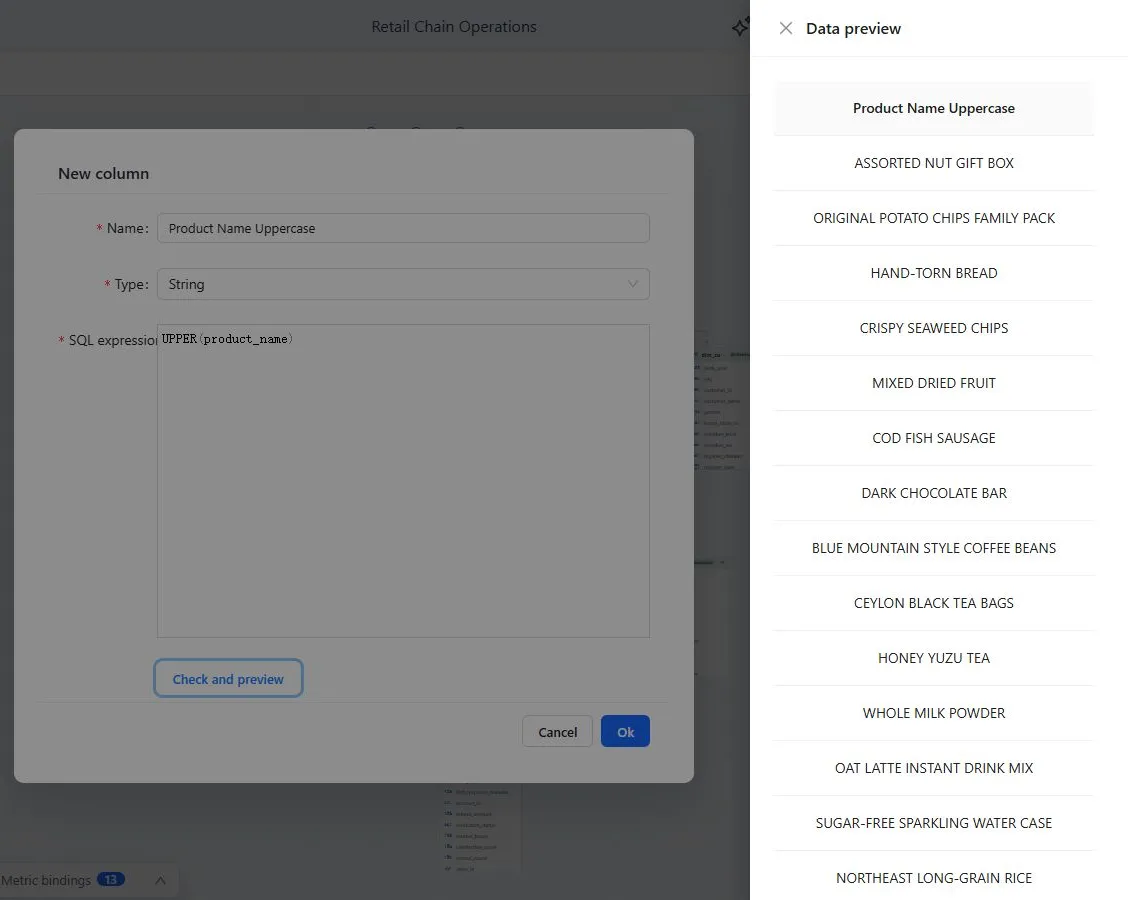
- Click Check and preview. Confirm the returned values and verify that they match the selected result type; preview does not validate that type for you.
- Close the preview, click OK, and then save the Analysis Model.
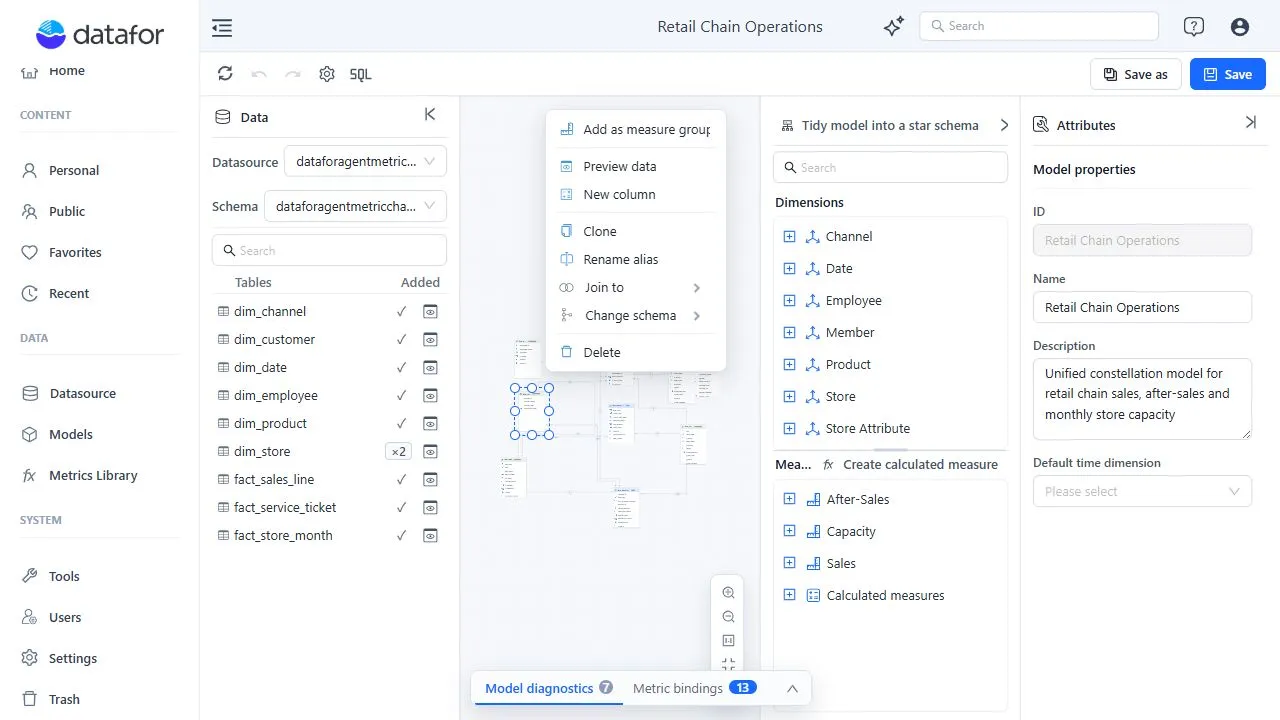
The editor below shows every supported result type.
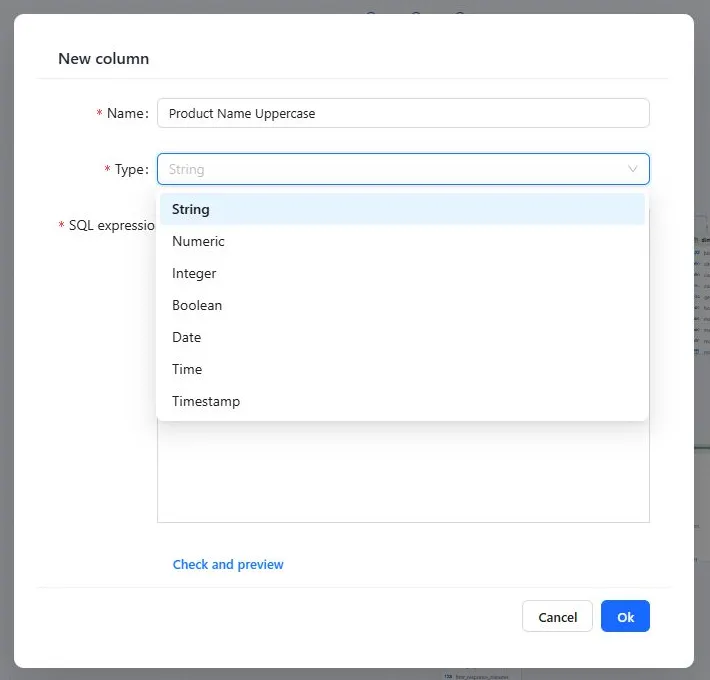
Example: normalize a product name
Create a String column named Product Name Uppercase on dim_product:
UPPER(product_name)The preview runs the expression against a sample from that physical table. The function syntax must match the SQL dialect of its data source.
Permissions on sensitive connections
A calculated column’s expression is custom SQL that Datafor sends to the database. Since 10.00:
- Check and preview needs permission to execute raw SQL on the connection: administrators always have it; other users need Full control on the connection, and the connection must not be sensitive. Otherwise the preview fails with
SQL_EXECUTE_FORBIDDEN:<connection>. - A non-administrator cannot save a model that contains a column expression on a sensitive connection; saving fails with
SQL_FRAGMENT_FORBIDDEN:<connection>.
Sensitive connections are engines running inside Datafor (DuckDB, uploaded file datasets and similar), JNDI connections, and connections on the database server that holds the Datafor repository whose account can reach the repository. Ask an administrator to add the column, or build the model on a regular database connection. See Data connections: targets and custom SQL.
Use the result in the model
The calculated column appears with the source fields in its table. Open its menu and choose:
- Set as dimension for a grouping, filter, label, or hierarchy Attribute.
- Set as measure for a value that must be aggregated. Numeric results initially use Sum; other types initially use Count.
Configure the generated Attribute or Measure in the Analysis model tree just like one created from a source column.
Edit or delete
- Select Edit calculated column to change the expression or result type. The column name is read-only while editing.
- Select Delete calculated column to remove it immediately from the editor.
- Deletion clears Caption column and Order by references automatically, but it does not remove every Attribute key, Measure column, or relationship-key reference. Review Model diagnostics, repair missing-field references, and test affected reports before saving.
Practical constraints
- Keep the expression row-level and limited to columns in the selected table. Use Measures for aggregation and relationships for cross-table analysis.
- Handle nulls and casts explicitly when the database does not infer the intended type.
- Preview representative edge cases, not only the first non-null value. Preview is a check, not a save gate.
- Complex expressions execute in source SQL and can increase query cost. Move heavily reused or expensive logic into a database view when appropriate.