
AI Agent
How to Enable the AI Feature
Turn on the AI Agent service under Settings › AI Agent › AI service, set its public and internal URLs, and check that the AI Agent opens.
Datafor uses the AI Agent service for conversational analysis on the AI Agent page, dashboard AI insight, AI clients connected through MCP, and the knowledge indexes of analysis models. An administrator turns the service on and sets its addresses on one page.
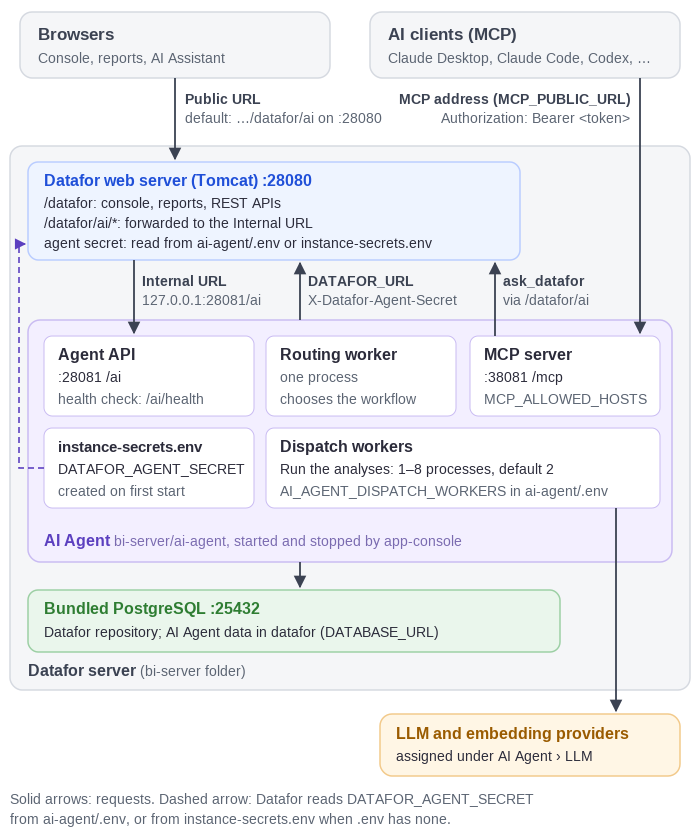
In the packaged installation the AI Agent runs on the Datafor server, and browsers reach it through Datafor:
1. Open the AI service settings
- Sign in to Datafor with an administrator account.
- Go to Settings › AI Agent › AI service.
The page has one section, Service connection, with a Save button at the bottom.
2. Enable the service
Turn on Enable AI Agent. While it is off, Datafor does not show AI Agent in the left navigation or the AI Agent card on Home.
Each user also needs AI access: in Users, the AI Agent switch in the user list (Enable AI Agent in the user form). A user without it who clicks AI Agent sees “Please contact your administrator to enable AI for this user” and stays on the current page.
3. Set the service addresses
| Field | Help text on the page | Configuration |
|---|---|---|
| Public URL | “The address browsers use to reach the AI Agent.” | Enter the URL that users’ browsers can reach. |
| Internal URL | “The address the Datafor server uses to call the AI Agent; usually the same as the public URL.” | Keep it aligned with the public URL unless the Datafor server must use a separate private route. |
In the packaged installation, where the AI Agent runs on the Datafor server, both fields can stay empty. Browsers then use Site URL (Settings › Access & Integration › Site address) followed by ai, for example https://bi.example.com/datafor/ai, and the Datafor server calls the AI Agent at http://127.0.0.1:28081/ai. Set Site URL to the address users open; with the shipped http://localhost:28080/datafor/ the AI Agent works only on the server itself. See Site Address. The fields show http://localhost:28080/datafor/ai as a placeholder, not as a value that must be copied to every environment.
4. Save and verify
- Click Save. The button is enabled only after you change a value.
- Click AI Agent in the left navigation, directly below Home.
- Confirm that the AI Agent page loads and that its toolbar shows New Chat, History, Connect AI, Common Questions, Ops, and LLM. Common Questions, Ops, and LLM are shown to administrators only.
Then:
- Assign the LLM stages and the embedding model: LLM Configuration.
- Check the knowledge indexes of your analysis models: Preparing Data for AI.
- To prepare for many users submitting questions together, follow Managing High Concurrency. Worker count is configured in the installed Agent’s server-side
.envfile; the settings on this page do not change analysis capacity.
5. AI Agent on a separate server
When the AI Agent runs on another server, or anywhere that is not the packaged ai-agent directory beside Datafor’s pentaho-solutions folder, also:
- Enter that server’s addresses in Public URL and Internal URL.
- Give the AI Agent and the Datafor server the same shared secret, so that users who are not administrators can use models configured in Datafor. See AI Agent Shared Secret.
Troubleshooting
| Symptom | Check |
|---|---|
| AI Agent is missing from the left navigation | Confirm that Enable AI Agent is on and saved. |
| A user gets “Please contact your administrator to enable AI for this user” | Turn on AI access for that user in Users. |
| AI Agent does not open | Confirm that the configured Public URL is reachable from the browser. |
| Backend AI requests fail but the page loads | Check Internal URL and server-to-server network access. |
| Save is disabled | The form has no unsaved changes. |
| Administrators can use AI features, other users get model errors | The shared secret is missing or differs between the AI Agent and Datafor. See AI Agent Shared Secret. |
| The AI Agent loads, but the progress title does not change until the answer appears | Datafor is behind a reverse proxy that buffers the AI Agent stream. Disable buffering for /datafor/ai/ as described in Deploying Datafor Behind Nginx. |